Addition - Everlasting Maths Worksheet
Download Addition (members only)Not a member? Register Here
GUARANTEED 100% CLEAN
Our Files DO NOT Contain Adware, Spyware, Viruses, Toolbars Or Any Other Third Party Software
Click here for loads more education software from Grey Olltwit.
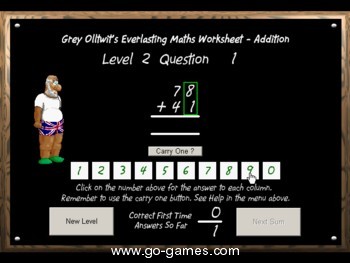
Colours and size of screenshot reduced to fit page
Suitable for UK Key Stage 2, 3, 4 & 5 - USA 2nd to 12th Grade (Age 7 - adult)
Recommended Minimum System: PC Windows 95/NT or better e.g. XP, Vista, Windows 7, (Mac users click here), 16MB Ram, Pentium 90, Sound Card.
Choose from 3 levels of addition sums from single digits to three figure problems. Each sum is randomly produced one at a time on a blackboard style interface. Audio and visual encouragement let's you know when you are right and when you need to try again. Includes the ability to carry 1 when the answer to a column of figures is more than 9. There is a facility to print out personalised certificates to encourage improvement. Compressed file size - 826 KB.
Play the online version
Other Programs Of Mine In This Series Are
Subtraction
Multiplication
Division
Schools That Use "Addition"
W. C. WALKER ELEMENTARY - FLORIDA, USA
Topeka Lutheran School - USA
De Vuurtoren (The Lighthouse) School - Utrecht, Netherlands
Milson School - New Zealand
If your school uses any of my programs, let me know
For help with downloading and installing, click here
This Program Rated 4 out of 5 Cows by TuCows
On the opening screen you will find that your mouse pointer turns into a hand over the three types of problems you can choose. Choose a type of addition sum that you would like to try ranging from single to three figure problems.
The Questions
Once you have clicked on your choice, a random question will appear which you have to solve by clicking on the numbers in green in the white boxes at the bottom of the blackboard. Sums in the second and third level have a green box around the column of numbers that you should solve first. They also have a carry one button below the sum's bottom line, when you have an answer to that column which is greater than ten. You will be told visually and audibly whether you have got the answer correct or not. When you are able to try the next sum, the Next Sum button will become active at the bottom of the board. At anytime you can try a new level by clicking on the New Level button at the bottom.
The Certificate
After a set number of correct answers, a rolled up certificate will appear on screen. You can click on this at anytime to access the certificate page and print it out. You can also move back to your level and score from the certificate page if you decide you don't wish to print one out just yet.
The Options
You can disable the audio messages from Grey Olltwit by selecting Options in the top menu and unchecking the Play Sounds selection. From the top menu you can also select a completely fresh game by selecting Application and New and from the Help section you can click on Grey Olltwit Online to connect to my website where there are many more free programs and games for you to try.
Saving Certificates/Games
When you are awarded a certificate you have the option to save it to print later. To do this click on the Save button on the certificate screen and a small save file window will appear. Type a name for your saved certificate into the box as indicated and click the Save button on the window. To load a previously saved certificate, simply click the Load button on the certificate screen and a load file window will open with the saved files listed. Click on the name of the file you want to open and click the Open button on the window. The certificate will then be loaded onto the certificate page.
You will find that when you load a previously saved certificate, clicking the Back button will take you back to the level that certificate was saved for and your old scores etc., will be shown. You can then continue with this saved game and go back to the certificate screen at any time for your updated award. You will need to save these new scores either under the same name or a different one, for them to be kept for the future.
You can load a previously saved certificate at any time by clicking on Load saved certificate/game in the top menu under Options. Clicking this will take you to a blank certificate screen where you can click on the Load button.
Grey Olltwit Educational Software Home Page