File It
Download File It (members only)Not a member? Register Here
GUARANTEED 100% CLEAN
Our Files DO NOT Contain Adware, Spyware, Viruses, Toolbars Or Any Other Third Party Software
Click here for lots more educational programs from Grey Olltwit.
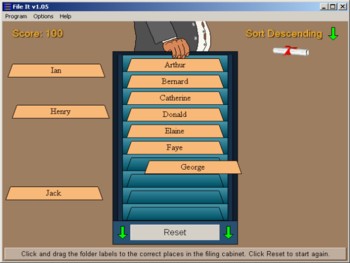
Colours and size of screenshot reduced to fit page
Suitable for UK Key Stage 2, 3, 4 & 5 - USA 2nd to 12th Grade (Age 7 - adult)
Recommended Minimum System: PC, Windows 95/NT4 or better e.g. XP, Vista, Windows 7, (Mac users click here), 16MB Ram, Pentium 166, sound card.
Educational program to help learn filing and sorting. Program includes an uninstall facility. Compressed file size - 1.28 MB.
For help with downloading and installing, click here
How To Use
Title Screen
On the first screen you need to choose a game to play by clicking one of the two large buttons. One is marked Sort Ascending and has arrows pointing upwards. This game is to sort a list of 10 words, numbers or phrases into order starting with the first one at the bottom and working up to the last entry at the top. For example in sorting the first 10 letters of the alphabet, the letter A would be placed at the bottom with B just above it and so on until the tenth entry J was at the top.
The second button is marked Sort Descending and is the same as the above except that the order is reversed with the lowest at the top e.g. A in the example and the highest at the bottom, J. Click on one of these buttons to play.
Main Screen
On this screen you will see a filing cabinet in the middle of the screen with an open drawer. In the drawer are ten empty folders, each with a label holder. Either side of the cabinet you will see 10 labels. These labels are mixed up and fit into the label holders. To move them, click with the left mouse button on one and hold the button down. Whilst holding down the mouse button, drag the label to the filing cabinet drawer and drop it over the label holder you believe is the correct one. The order that the labels should be sorted is shown by the arrows at the bottom of the filing cabinet and the top right hand corner.
For example using the first 10 letters of the alphabet and with the arrow pointing up (sort ascending), then label A should be placed over the bottom label holder, with B above it and then C etc.
Once you have filled all the label holders then a button Check Your Answers will appear on the bottom of the cabinet. Click this and your answers will be checked. A green tick for correct will appear next to the label if it is in the right position. If it is not then a red cross will be shown.
If all your answers are correct then a button will appear on the filing cabinet to Close The Drawer (be careful of Mr.Nasty’s fingers :-) and a certificate button will be shown in the top right hand corner.
A new game button will be displayed after each attempt at filing the 10 folders.
If you have the sound on during the game, then Mr.Nasty, your boss, will make some general unhelpful comments about all his workers. Be careful not to trap his fingers in the filing cabinet drawer if you get all the answers correct.
Create/Edit Files Screen
This can be selected from the top menu under Program and is a facility to make up and edit your own word/phrases files. Drop down the top box to select a file to edit or click the Create A New File button. Type in your entries as you want them to appear in the edit text box below your list. After each word, number or short phrase you can either press enter or click the Add button to add your entry to the list. The entry will be sorted automatically for you, so there is no need to type your entries in any order. The program takes care of sorting in either ascending or descending order. Click the Save button to save your file. There is also a Test button to try your file or a Delete button to remove it. The edit box will accept copied text by right mouse clicking and selecting Paste.
On this screen there is also a password facility to prevent access to the edit facility if required. Check the small box at the bottom of the screen to activate it. A password is required to be typed in and will be asked for if this screen is requested from the top menu in the future. To turn off the feature at any time, just uncheck the box.
Grey Olltwit Educational Software Home Page