Fractions
Download fractions (Members Only)
Not a member? Register Here
GUARANTEED 100% CLEAN
Our Files DO NOT Contain Adware, Spyware, Viruses, Toolbars Or Any Other Third Party Software
Click here for lots more educational software
Colours and size of screenshot reduced to fit page
Suitable for UK Key Stage 2, 3, 4 & 5 - USA 2nd to 12th Grade (Age 7 - adult)
Recommended Minimum System: Pentium PC, Windows 95 or better e.g. XP, Vista, Windows 7, (Mac users click here), 32MB Ram.
A program to help learn all about fractions. The program contains over 160 questions with a facility for teachers, parents or educators to easily add more. Special thanks to Blake-Hammond Education for the included questions.
I used to hate fractions at school. I wish there had been a program like my fractions software when I was learning them. With numerators, denominators, vulgar fractions, improper fractions etc., to me it was a complete minefield. Adding fractions, subtracting fractions, multiplying fractions and dividing fractions, it was all bewildering. My program deals with all these with lots of exercises to try and explanations of how things are done in the fraction world. Whether you are just learning fractions or have a student who is, or maybe you or a student just needs some practice, my fractions program should help.
Program includes an uninstall facility.
Compressed file size - 1.67 MB.
For help with downloading and installing fractions, click here
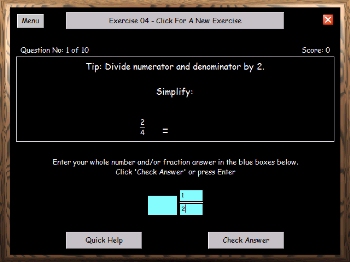
Answer Questions Screen
On this screen you begin by choosing an exercise from the top drop down menu. On selection the exercise will start and the first question will appear in the middle of the screen. At the bottom of the screen a short blue box, for whole numbers, together with two further small boxes will appear, to help with the input of a fraction answer. The two smaller blue boxes appear one on top of the other. The top box is for the numerator of a fraction. The bottom blue box is for any denominator.
When you have input your answer, press the Enter (Return) key on the keyboard or click the Check Answer button. If correct, you will be shown the next question. If incorrect you will be given the opportunity to correct your answer. After 3 attempts you are able to click the text shown on screen to be shown the answer if needed. Sometimes there may be more than one acceptable answer e.g. 1 in the whole numbers box or 4/4 in the fraction boxes.
The number of questions are shown on the left, the percentage of questions answered correctly first time is shown in the centre of the screen and your score is shown on the right. 100 points are scored for a correct answer.
At the bottom of the screen is a Quick Help button which produces a small help screen with information on adding, subtracting, multiplying and dividing fractions. Once all the questions have been answered you will be given the opportunity to have a further attempt by clicking the Another Go? button. Also a certificate roll will appear which you can click on to take you to the certificate screen (see below).
Add/Edit Questions Screen
This screen allows you to create exercises using text and numerical input. Existing exercises can be loaded by dropping down the top menu and choosing them from a list. To create a new exercise, click the New button and follow the instructions. To remove an exercise, click the Delete button to the right of the drop down list menu.
Under the above boxes is a large green text and numerical entry box. This is saved in rich text format so that different font sizes, bold, underline etc., can be used along with a facility to paste text or small images from other programs such as Microsoft Word or Paint. Right clicking on this text entry box gives a further menu containing the following commands; Copy, Paste, Select All, Bold, Underline, Italic, Undo Commands, Change Font/Size, Insert Division Sign, Align Text Left, Centre and Right.
Under the large text entry box are a set of smaller green entry boxes which are intended for numerical input. The smaller top green boxes are for numerator input while the bottom small ones are for any denominators. Between each set of boxes are drop down lists for operators i.e. +, -, x, ÷ and =.
The second section of the screen allows the entry of acceptable answers to your question. For a 2nd (optional) possible answer to a question use one of the sets of boxes on the 2nd line.
Each time you complete a question and answer you must click the Save This Question button at the bottom of the screen. Then you must click the Add A New Question button for a new one. Click the Delete This Question button to remove the current question shown. Click the Try File button to test your set of questions but make sure each one is saved first.
Grey Olltwit Educational Software Home Page