Graph Maker Plus
Download Graph Maker Plus (members only)Not a member? Join Here and download all our education software
GUARANTEED 100% CLEAN
Our Files DO NOT Contain Adware, Spyware, Viruses, Toolbars Or Any Other Third Party Software
Click here for lots more educational software
Colours and size of screenshot reduced to fit page
Suitable for UK Key Stage 2, 3, 4 & 5 - USA 2nd to 12th Grade (Age 7 - adult)
Recommended Minimum System: PC, Windows 95/NT4 or better e.g. XP, Vista, Windows 7, (Mac users click here), 16MB Ram, Pentium 166, sound card.
Making simple bar, line and pie graphs is easy with my program. Just enter the data and choose the type of graph you want to build. Save the data to open or edit later. Print out your graphs or paste them into another program e.g. Microsoft Word, Works or similar. This version allows entry of more sets of data, over the original Graph Maker. Program includes an uninstall facility. Compressed file size - 2.04 MB.
With Graph Maker Plus you can easily add your data, descriptive labels and much more. With the same data you can produce bar graphs, pie graphs and line graphs. Using the copy and paste facility you can add your finished graphs to MS Word documents, PDF files etc. Graph Maker Plus allows entry of more sets of data and extra fields over my original Graph Maker and all data can be easily saved for future use.
For help with downloading and installing, click here
The opening screen is the data entry screen where you input all the information used to make your graph. The first entry box is where you type a title for your graph. Underneath this are the boxes for entering your data. The first column is for your Descriptions and is used to describe what each value relates to. The second column to the right of this is for the Values for each of the descriptions. In this column you can use decimal values up to 2 places.
Below these columns are two further text entry boxes which are used to label your graph along the X Axis (the horizontal line) and the Y Axis (the vertical line). Either side of these are two large buttons. The one on the left is a Save button for saving your data and the one on the right is an Open button for opening previously saved graph data.
The bottom 3 buttons are used to build your graph from the data you have supplied. There are 3 types to choose from i.e. a Bar Graph, a Line Graph and a Pie Chart.
Make a graph
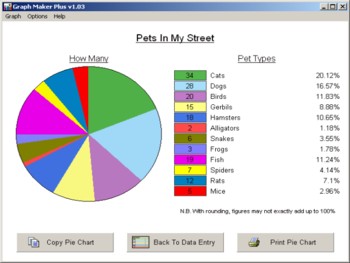
The best way to show you how to make a graph is for you to load the example graph called Pets In My Street. Click on the large Open button towards the bottom right of the main screen. A standard windows dialogue box will appear and you should see the file "Pets In My Street.gog". Your computer setup may hide the .gog (Grey Olltwit Graph file) bit at the end of the filename, so you will just see Pets In My Street. Double click the file to open it in the program. You should then see the text descriptions column fill with different types of pet e.g. Dog, Cat etc. The graph is counting how many of each type of pet are kept by neighbours in a single street. The right hand column should show the values e.g. there are 27 dogs, 35 cats etc. Notice the label names at the bottom for the two axis, x and y, and the title of the graph at the top. Click on any one of the 3 graph builder buttons at the bottom to see what happens.
On each of the three types of graph screen the three buttons at the bottom of the main data screen are replaced by a Copy button, which can be clicked to take a copy of the graph for pasting into a Word Processor file or paint /picture editing program; a Back To Data Entry button which when clicked returns you to the main data screen; and a Print button to send the graph to your printer. You will find that you can change your printer settings e.g. to Landscape, greyscale only etc., in Options in the top menu.
Grey Olltwit Educational Software Home Page