Press A Letter
Download Press A Letter (members only)Not a member? Register Here
GUARANTEED 100% CLEAN
Our Files DO NOT Contain Adware, Spyware, Viruses, Toolbars Or Any Other Third Party Software
Click here for lots more educational software
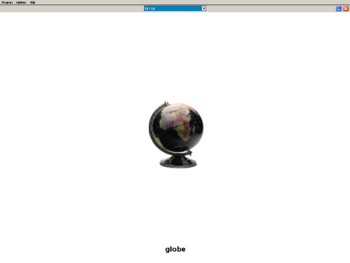
Colours and size of screenshot reduced to fit page
Suitable for UK Key Stage 1, 2, 3, 4 & 5 - USA 1st to 12th Grade (Age 5 - adult)
Recommended Minimum System: PC, Windows 95 or better e.g. XP, Vista, Windows 7, (Mac users click here), 16MB Ram, Pentium 166 and sound card.
Based on an idea by Maggie Lyons, this is a simple program that shows pictures, sounds, music and short videos when a letter key is pressed on the keyboard. The word is also shown and corresponds to the letter pressed e.g. when A is pressed you may get a picture of an apple, B a ball etc. Two folders of simple content are included with the program. The Pictures folder contains just images and the Mixed folder contains some sounds and short videos too. These folders can be added to with your own content and an Edit facility is included in the program. It is possible to add more than just one example of media content to a folder e.g. ball, banana, boat etc. The program will pick just one at random when it is run. File types the program supports include (pictures) bmp, pcx, gif, jpg, (video) mpg, avi, mov, (audio) wav and mp3.
Program includes an uninstall facility.
Compressed file size - 2.70 MB.
What's new in v1.13:
The windows keys (Start menu, right menu etc) are now disabled while the program is running. This new version may not function on Windows 95. If this is the case on your system then download the previous version by clicking here. This does not include the new disable windows key feature.
For help with downloading and installing, click here
When you first start the program the audio help will begin speaking to you if you have a sound card correctly configured. To turn this off, click on the Speaker Icon in the middle of the screen. This will be saved for future sessions and show a red cross through the speaker picture. Click it again at anytime to turn the feature back on.
On the opening title screen there is a drop down list of all the folders available to the program. Drop the list down by mouse click or with the down arrow key and select a folder. Once a folder is selected then the bottom Play button (Red Next Arrow) will highlight. Click on this button or press the Enter or Space Bar keys to start the program.
Main Screen
Here it is simply a question of pressing any letter key on your keyboard to see or hear the files in the folder selected. There is a drop down list of the folders at the top of the screen, where you can change the selected folder at anytime.
Add/Edit Folders Screen
This screen is really designed for use by supervising teachers, parents, carers etc. Use the Browse For Files button to look through your directories for pictures (bmp, pcx, gif and jpg file formats), sounds/music (wav and mp3 file formats) and video (mpg, avi and mov file formats). When supported files appear in the browse window, simply select one and all the files in that folder will be listed in the red list box on the left of your screen. The list on the right of your screen will show the contents of your current folder file. You can drop the list down to select another or create a new folder by clicking the Create A Folder button.
Clicking on any one of the files in either list will open and show that file. The text name for that file will also appear at the bottom of the screen. You will notice that the text is the name of the file without the file extension added on. Therefore be careful to name the files so that the word appears as you want it to on the main screen.
Once a file is highlighted in your current folder list, you can then use the Rename File button to rename it or the Delete File button to remove it permanently from the folder. You cannot delete or rename files in the main hard disk list on the left. Basically when you highlight a file in the left hand list, the Copy File To Press A Letter Folder will become enabled. Click this button to copy that file to your Press A Letter folder. All the Press A Letter folders are contained in the programs own directory in the Olltwit folder on your hard drive. You could therefore copy and paste a complete folder of contents into the Press A Letter program folder and it will be listed in the program.
Use the Back To Press A Letter Screen to return to the main screen and the Stop Sound Or Video button to close a video or sound file. The Close Program button, closes the program and the Help button produces this page. The red cross button in the top right also closes the program as does pressing the Esc key. The blue button in the top right, minimizes the program as does pressing the F5 key on your keyboard.
Grey Olltwit Educational Software Home Page