The Strongest Link
Download The Strongest Link (members only)Not a member? Register Here
GUARANTEED 100% CLEAN
Our Files DO NOT Contain Adware, Spyware, Viruses, Toolbars Or Any Other Third Party Software
Click here for lots more educational software
Click here for all my programs (over 200) on a DVD
Colours and size of screenshot reduced to fit page
Suitable for UK Key Stage 2, 3, 4 & 5 - USA 2nd to 12th Grade (Age 7 - adult)
Recommended Minimum System: PC, Windows 95 or better e.g. XP, Vista, Windows 7, (Mac users click here), 16MB Ram, Pentium 166 and sound card.
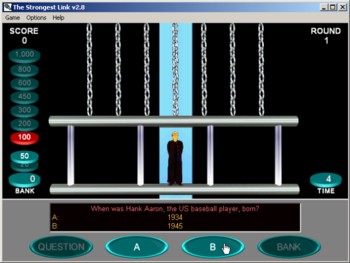
This is a game based upon the BBC TV quiz show "The Weakest Link" hosted by Ann Robinson. In my game you answer questions and win points but the quiz show host is suspended on a special platform supported by 9 chains. Each time you answer a question correctly, one of the chains is broken. Break all nine chains in succession and the platform falls and you score the maximum points. If you answer a question incorrectly the chains are restored. There are sets of general knowledge questions included with the game and although some may be too hard for younger players they might still like to play as there are only two possible answers for each i.e. A or B. With this number of questions after it has been played a few times you should start to see questions coming up twice or more and I think you'll be surprised how quickly you get to know the answers. There is a high score table in the game for saving completed game scores. Hundreds of questions are included with the download.
Program includes an uninstall facility.
Compressed file size - 1.08 MB.
For help with downloading and installing, click here
How To Play
On the first screen there is a drop down list of the question files available. Click on the small down arrow to drop down the list and then click on an entry to highlight it. This game comes with 3 sets of General Knowledge questions with over 200 in each. With this latest version of The Strongest Link you can now add or edit sets of questions (see the Edit/Create Questions section below for instructions), either by making them yourself or by downloading new sets that I may make from time to time or that have been sent to me by knowledgeable website visitors. Drop me a line if you would like to contribute a list.
Once you have selected a set of questions click on the PLAY THE STRONGEST LINK button to begin.
On the main screen there are disks on the left with numbers on. These represent the scoring and go from 20 up to 1000. See Scoring below for an explanation. In the top right of the screen is the number Round you are on of which there are 8 in total. Your total Score is shown in the top left of the screen and the final counter on the right hand side is the Time for that round. Time starts at 90 seconds for the first round and goes down in steps of 5 seconds for each round i.e. to 55 for round 8.
At the bottom of the screen is a black panel where the questions are displayed. If you find the text of the questions is too large for the box then you may not have the Arial font on your computer. It is the most common font but if you need a copy you can get one on the net or by contacting me using the form on my website. Under the black panel are four buttons, Question, A, B and Bank. You can only click these buttons when they are highlighted. Clicking the Question button displays a question in the black box with two answers labelled A and B. After the question has been displayed, the A and B buttons will highlight so you can choose your answer by clicking one of them. Choose the right button and the question will highlight in Green, one of the chains supporting the quiz host will break and the next score disk lights up. Get the question wrong and it turns red and your the scoring disks on the right return to the bottom (see below). The chains supporting the host also return. Once the timer on the right gets to zero then that round is over. You can also finish the round early by getting 9 questions in a row correct and scoring the maximum 1000 points. After each round you are shown a black screen with a progress report on it and a button to click to start the next round. In the final round 8, any points you score in that round are doubled and added to your final score. After the final round you are then invited to add your name to the high score chart if your score is high enough.
Scoring
On the main screen there are disks on the left with numbers on. These represent the points and go from 20 up to 1000. When you start the first disk valued at 20 points will show red. When you get a question right then that disk will highlight and move down from the rest. The next disk up will then turn red being the value of the next question. If you then answer the next question correctly that will then highlight and drop down from the rest and so on. Get any question wrong however, and the disks go back to where they were and the next question becomes worth only 20 points again. The quickest way to maximum points is to keep getting the questions correct but you do have an extra option which is called Banking (see below). Your total points score is shown in the top left of the screen after each round.
Banking
The fourth button on the main screen is the Bank button. When you get a question correct then this button will light up and you can click on it. This will transfer the value of points shown on the highlighted disk on the left to your Bank total which will go towards your score whatever happens but it does also drop the scoring back down to the start i.e. 20 points, and the chains supporting the host are restored. Clicking the question button for the next question will disable the bank button, it is only highlighted again after you have answered another question correctly.
Edit/Create Questions
To add or edit sets of questions you need to select Edit/Create Question Files from the top menu under Options. This menu item is only available on the first and high score screens and is not highlighted when you are playing the game. Selecting this menu item will take you to a new screen. At the top you will see a Create New Question File button and just below that is a drop down list of the current question files available. Either click the button to create a new question set or choose a file to edit or add to from the drop down list. The files do have a physical size limit in kilobytes so I would suggest a limit of no more than 200 questions per file.
Clicking the Create New Question File button will produce an input box where you need to type in a name for your file. Do not type .ini at the end as this will be added automatically, you just need to type a name for your file, with spaces if you wish. Once you click OK then that file name will appear in the drop down list. Now you just need to type in or paste your question into the top blue Question box. Please note there is a 70 character limit so that the questions appear correctly on the game screen. Next move to the green Correct Answer box below either by clicking in that box or pressing the tab key on your keyboard (that's the key with right and left arrows on it above your Caps Lock button). Type or paste your correct answer here then move onto the red Wrong Answer box and add an incorrect answer for your question. Once you have added text to all three boxes, click the Save This Question button at the bottom of the screen or press the Enter/Return key on your keyboard. Doing this will save your question and clear the boxes ready for your next question.
If you add only a few questions, you can still play the game as when it runs out of questions it reloads the list and starts again, so don't think you have to add 200 for it to work as you can still play the game with only half a dozen questions.
Each time you click the Save button that question is added to your list, even if you then close the program. You can scroll through your lists using the arrow buttons above the question box. The two furthest arrows on either side take you to the first and last questions respectively. If you want to edit a question or its answer then do that when it is displayed and then click the Save button.
You can also use the right mouse click menu here giving the following options. Copy, Paste, Undo, Cut, Delete and Select All. These commands can be accessed by right clicking your mouse over the text entry boxes. To copy a question or answer from elsewhere, click and drag your mouse pointer over the words in any text, word or html (web page) file and then while they are highlighted, right mouse click to produce a pop up menu. Choose Copy and this will copy the highlighted words to your computer's clip board (memory). Then in the text box in this program right mouse click over it and choose Paste from the pop up menu and the words copied will appear in the box. Other commands in pop up menu include Undo, which undoes the last thing you did, Cut which is like copy except it removes the selected text, Delete which erases any selected text and Select All which highlights all the text shown ready for copying or deleting.
If as a parent or teacher you would like to restrict access to the Edit/Create Questions screen, click the check box marked Password protect this screen. A small window will appear, where you can add a password. Click the OK button to save it. In future when anyone accesses this screen, they will be prompted for the password to continue. A correct password will allow access. Once on this screen you can uncheck the Password protect screen check box at any time to allow free access to all users once more.
Grey Olltwit Educational Software Home Page